Dashboard Overview
Goal
Understand the supplier dashboard layout to quickly review new work, track in-progress enquiries, and respond to messages that need attention.
Dashboard at a glance
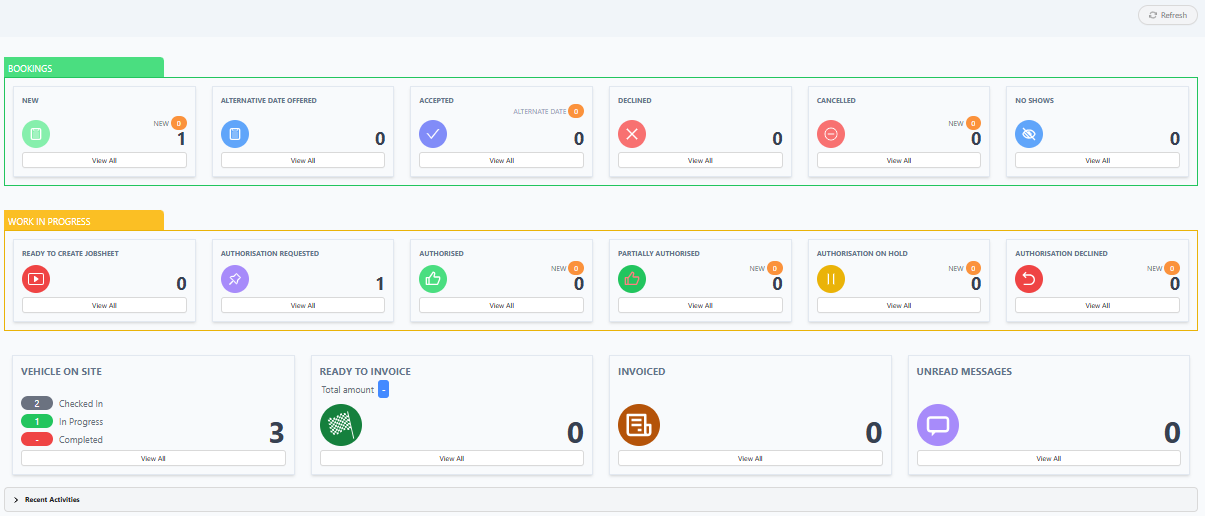
The dashboard opens by default after sign in. It summarises all open workstreams and highlights anything that needs action. The key elements are:
- Header: Shows a
Refreshbutton to reload the counters without leaving the page. - Recent Activities: Displays a table of the latest enquiries and status changes at the bottom of the page, enabling quick access to ongoing work without running filters.
- Enquiry Status tiles: Each category groups related statuses showing how many enquiries sit in that part of the process. Click
View Allon any tile to jump into the filtered list.
Bookings section

The green Bookings band tracks all enquiries before work starts. These counters help prioritise booking confirmations and customer responses.
| Tile | Description |
|---|---|
New | Shows only enquiries if there are any new enquiries and the enquiry details have not been viewed. |
Alternative Date Offered | Count of alternative dates offered because the requested dates cannot be accommodated. |
Accepted | Bookings that have been confirmed; vehicle has not yet arrived on site. |
Declined | Enquiries rejected (e.g. capacity issues or out-of-scope work). |
Cancelled | Bookings cancelled by the customer or head office before arrival. |
No Shows | Bookings that were accepted but the vehicle never arrived. |
Few tile shows a NEW badge when items have been added without any activity performed on them, helping to identify untouched updates.
Work in progress section

The amber Work in Progress band captures enquiries where the vehicle is on site and work is underway or awaiting authorisation.
| Tile | Description | Typical follow-up |
|---|---|---|
Ready to Create Jobsheet | Vehicle is checked in but no jobsheet has been generated. | Create the jobsheet, add job lines, and confirm labour estimates. |
Authorisation Requested | Work requires approval from the lease company or customer. | Check for replies and resend supporting documents if requests age. |
Authorised | All required approvals obtained for the scoped work. | Continue with the agreed repairs and update progress notes. |
Partially Authorised | Only part of the requested work is approved. | Review the declined items with the customer and agree next steps. |
Authorisation On Hold | Approval paused pending extra information. | Supply the missing evidence or escalate to head office if delayed. |
Authorisation Declined | Approval refused for the work. | Contact the customer to confirm resolution, alternative repair, or closure. |
Few tile shows a NEW badge when items have been added without any activity performed on them, helping to identify untouched updates.
Vehicle on site and financial tiles

Below the workstream bands are consolidated counters for operational and billing tasks.
| Tile | Description | Typical follow-up |
|---|---|---|
Vehicle on Site | Service and other repair enquiries currently Checked In, In Progress, or recently Completed. | Add job sheet and seek approval if required |
Ready to Invoice | Jobs completed with final costs confirmed but invoices not yet raised. | Create the invoices |
Invoiced | Jobs already invoiced and awaiting payment or reconciliation. |
Communication tile

Unread Messages: Displays open conversations from customers, or lease companies that need a response. ClickingView Allopens the message centre for direct replies.
Recent activities table

The Recent Activities feed surfaces the latest enquiries and status changes, enabling quick access to ongoing work without running filters.
- Lease Company: Source of the enquiry; helps identify the right escalation path.
- Service Type: Identifies the work requested (e.g. servicing, tyres). Blank cells indicate the jobline has not been created yet.
- Enquiry Date: Timestamp for when the latest activity occurred.
- Contract Type: Indicates whether a vehicle is managed by a lease company or by the driver. The umbrella colour changes to reflect this distinction.
- No. of Suppliers: Number of suppliers or garages this job was or is offered to. Only one supplier or garage will be offered the job.
- Make: Vehicle manufacturer reported on the enquiry.
- Status: Current progress marker (e.g.
New,Checked in by garage). - Unread Message(s): Column displays whether the enquiry chat has unread messages; if present, an action button opens the conversation in the message centre.
Select View on any row to open the full enquiry record.
Best practices
- Refresh the dashboard at the start of shifts and after completing major tasks to catch new work.
- Use the
View Alllinks to move directly into filtered lists instead of navigating through menus. - Triage
New,Authorisation Requested, andUnread Messagesfirst to keep customers informed and work moving. - Escalate
Authorisation Declinedor prolongedOn Holditems to head office for support.
Status: Accepted
Category: Protected
Authored By: Arun Kumar on November 12, 2025
Revisions